
Hướng dẫn Ray-ban Meta, Knowledgebase
How to Fix Common Ray-Ban Meta Glasses Problems

Oct
During everyday use, Ray-Ban Meta smart glasses may run into issues such as losing connection with the Meta AI app, failing to take photos or record videos, draining the battery quickly, or not charging. Depending on the cause, you can often fix the problem yourself by restarting the glasses, checking the connection, or doing a factory reset. In this article, DroidShop explains how to recognize and fix the most common issues, and points out the cases where a hardware check or repair is needed.
Issues you can quickly fix at home by restarting the glasses
There is a power switch on the left arm of the Ray-Ban Meta Gen 1 and Ray-Ban Meta Gen 2, and on the right arm of the Ray-Ban Meta Gen 3. The simplest way to restart the glasses is to slide the switch to turn them off, then slide it back to turn them on again.

If the glasses need a force restart, follow these steps:
- Unfold both arms of the glasses
- Slide the power switch backward to turn the glasses off
- Press and hold the capture button while sliding the power switch forward to turn the glasses on
- When the LED turns red, release the capture button
After a force restart, it may take a few minutes for your glasses to reconnect to the app. If they don’t reconnect within a few minutes, you may need to do a factory reset as described in the section below, then reconnect your glasses to your phone.
Video recording is limited to 1 minute, even though it’s set longer in the app
- Symptom: The glasses stop recording after 1 minute, even though the app is set to 3 or 5 minutes
- Cause: A software conflict, or the glasses haven’t been updated to the latest software
- Fix: Force restart the glasses by turning off the power switch, then pressing and holding the capture button while turning the power back on. Update the glasses to the latest software version.
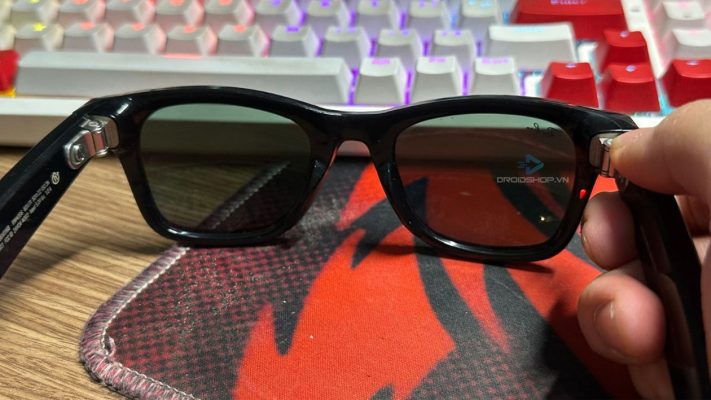
The glasses lose connection in the app
- Symptom: The glasses are still connected to your phone via Bluetooth and can still take photos and videos, but the app doesn’t show them as connected, or the glasses disappear from the app completely
- Cause: A software conflict or a connection conflict between the glasses and the app
- Fix: Put the glasses in the charging case and press and hold the button on the back of the case until the lights on the case and the glasses turn blue. The app will show a pop-up automatically, or you can tap the + icon in the top left corner and choose to add Ray-Ban Meta glasses.
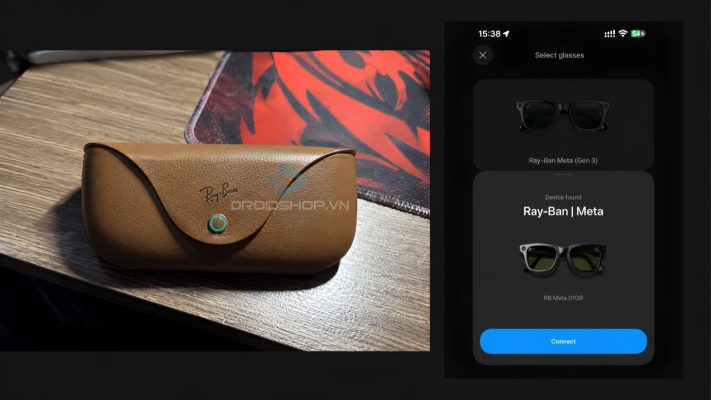
The glasses can’t take photos
- Symptom: You press the capture button but the glasses don’t take a photo or record, even though the shutter sound plays normally
- Cause: A software conflict on the glasses
- Fix: Force restart the glasses by turning off the power switch, then pressing and holding the capture button while turning the power back on
Sound plays from the phone speaker instead of the glasses
- Symptom: Audio plays from the phone instead of the speakers on the glasses
- Cause: A setting changed by the user, or a connection conflict between the glasses and the phone
- Fix: Change the audio output on your phone back to the glasses
Can’t import media from the glasses to the phone
- Symptom: After taking photos or videos, the media doesn’t import automatically, and manual import from the phone also fails
- Cause: The app doesn’t have all the required permissions, or the app has a temporary error
- Fix: Grant all the permissions the app asks for, then fully close the app and open it again.
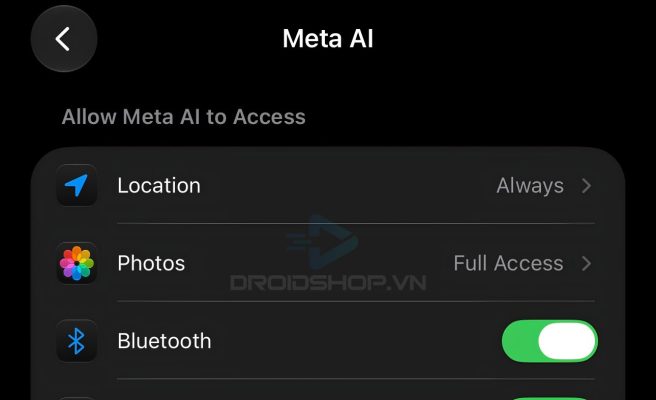
The LED keeps flashing white when starting up
- Symptom: The status LED keeps flashing white and never turns green after startup, even after waiting a very long time (until the battery runs out)
- Cause: An error occurred during a firmware update, or the firmware is corrupted
- Fix: Force restart the glasses, or let the battery run out completely (keep them out of the charging case). Once the battery is drained or the glasses restart successfully, the issue should be resolved. If the LED still keeps flashing white after the battery runs out and the glasses are restarted, please send them to DroidShop for a hardware check (the cause is a mainboard fault).
-> If none of the steps above solve the problem, do a factory reset on the glasses
Issues you can fix at home with a factory reset
How to factory reset Ray-Ban Meta glasses: see our guide on how to factory reset Ray-Ban Meta
The battery drains quickly even though the glasses are still new
- Symptom: Even after only a short time of use, the battery drains very fast. In particular, the glasses warn of low battery while the app still shows the battery as full
- Cause: A software conflict while the glasses start up and run
- Fix: Factory reset the glasses to their original state. If the battery still drains quickly after that, please send them to DroidShop for a hardware check.
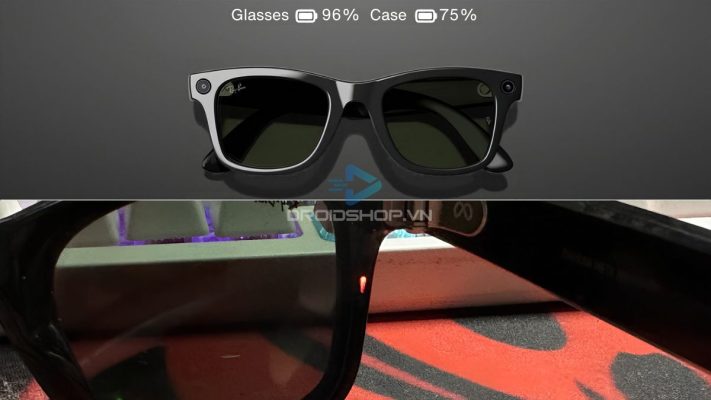
The LED keeps flashing orange and white during an update or factory reset
- Symptom: The status LED keeps flashing orange and white and doesn’t switch to the flashing white startup light.
- Cause: An error occurred during a firmware update or factory reset
- Fix: Force restart the glasses, then do the factory reset one more time
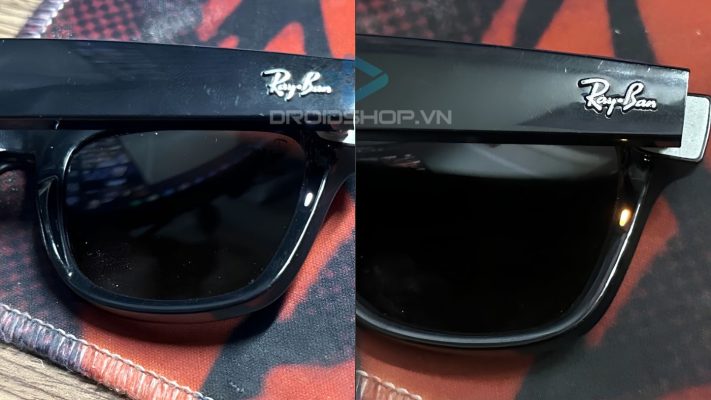
Hardware issues that need repair at DroidShop
DroidShop provides warranty service and Ray-Ban Meta repair for glasses purchased from our store. Glasses come with a 6-month warranty and a 1-for-1 replacement within the first 30 days.
The glasses won’t turn on / keep losing power
- Symptom: The glasses won’t turn on, or they shut off right after being taken out of the charging case
- Cause: A manufacturing defect, water damage from sweat or rain, drops, or other physical impact
Cracked arm (not fully broken off)
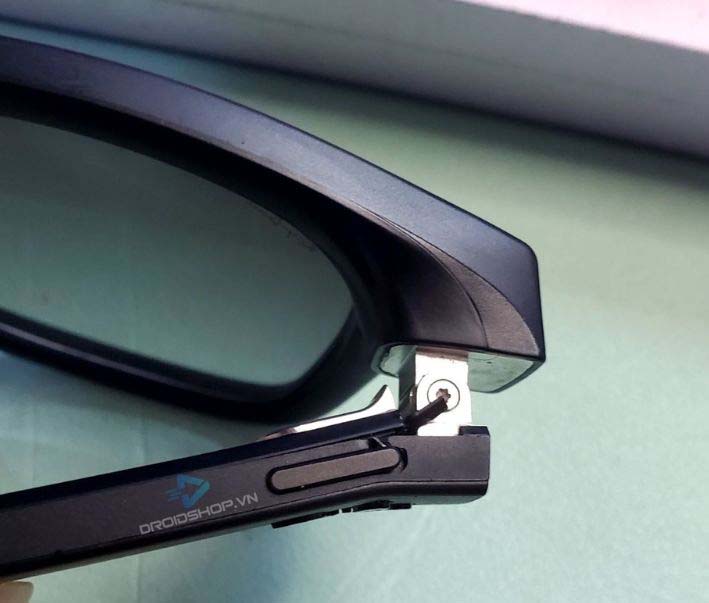
- Symptom: The arm of the frame is broken or cracked but not completely snapped off
- Cause: Physical impact, drops, or something heavy pressing on the glasses
The glasses turn on but shut off when you put them on
- Symptom: The glasses power on normally, but turn off when you wear them, and start up again normally when you take them off
- Cause: A loose power socket caused by physical impact, or by wearing glasses that are too tight. Over time, the frame stretches and pulls on the power socket.
Microphone not working
- Symptom: The microphone still doesn’t work after a factory reset. This may be caused by a fault in the front frame
- Cause: Physical impact, or water getting in from rain or sweat.
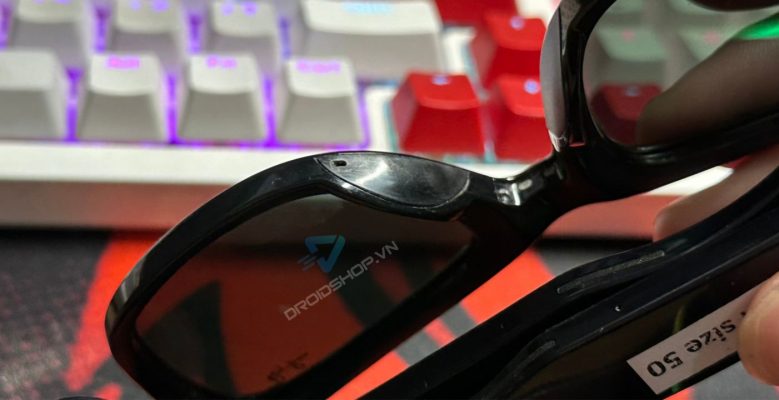
The Microphone Sits at the Nose Bridge and Can Fail if Sweat Gets In
Touchpad acting up or not working, wear sensor not working
- Symptom: The touchpad responds erratically or doesn’t work at all, or the wear sensor doesn’t work
- Cause: Physical impact, or water damage from sweat or rain
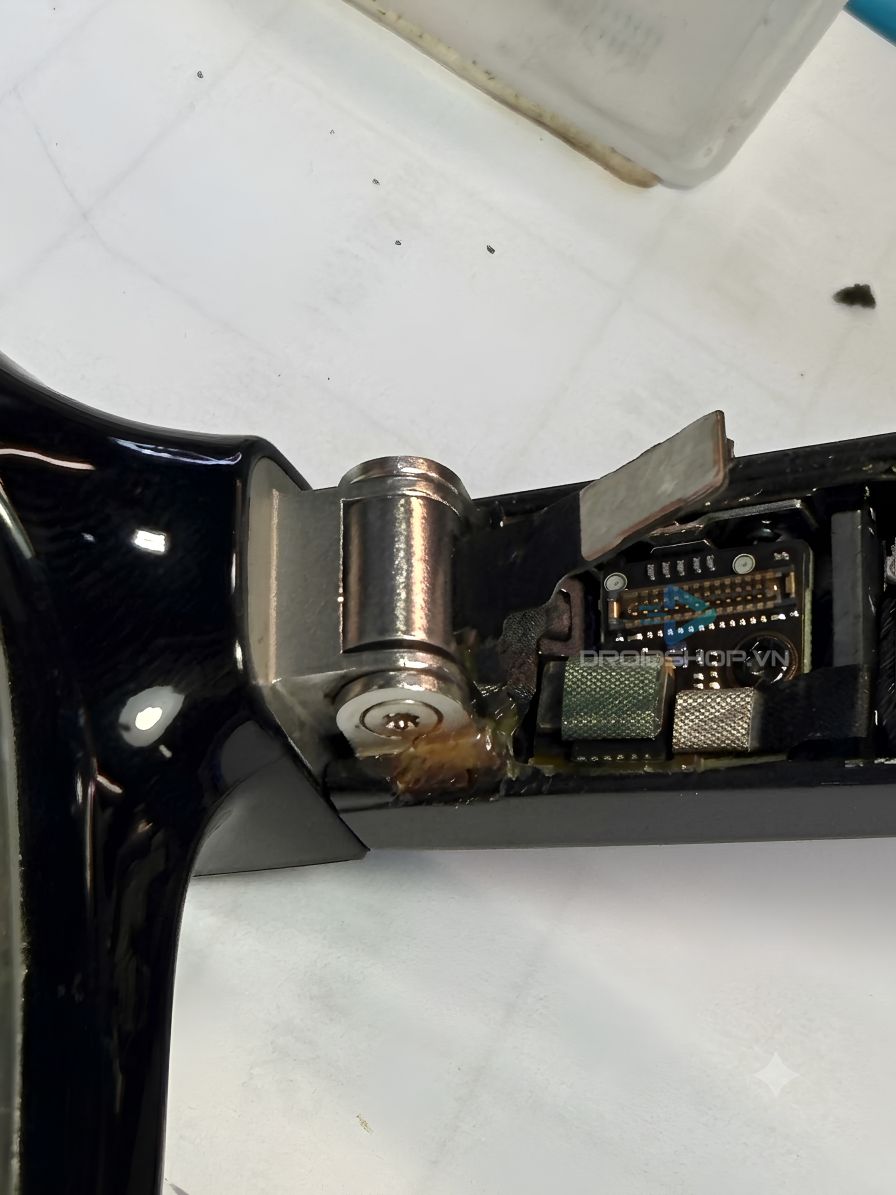
Speakers crackling or silent
- Symptom: The speakers crackle or don’t work
- Cause: Water damage or physical impact
The glasses don’t charge in the case
- Symptom: The glasses don’t charge when placed in the charging case
- Cause: Dirty charging contacts between the glasses and the case, or a charging conflict between the glasses and the case
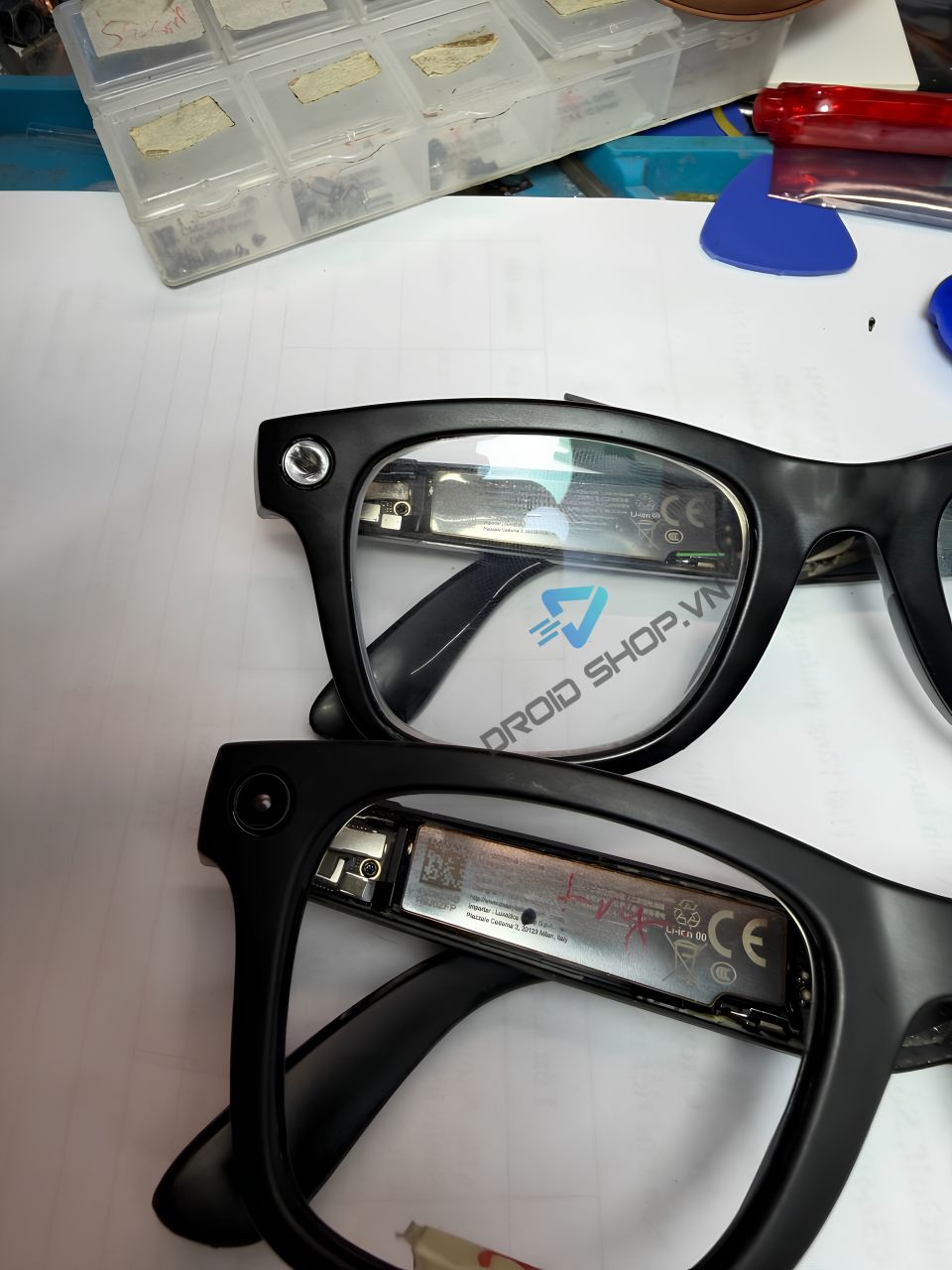
The glasses can’t record videos or take photos
- Symptom: The glasses can’t record videos or take photos and show the message “Please remove cover of the LED light”
- Cause: The user has drilled into or disabled the LED that signals recording. Meta blocks video recording and photos when it detects that this LED is covered or not working, to protect other people’s privacy
See also: